Tutorial: an AMR in a warehouse
In this tutorial you run the sample differential-drive AMR in a small warehouse, watch it in the viewer, drive it over ROS 2, record a run, switch a domain to its substitute, add your own module, and let Nav2 patrol the warehouse. It takes about 30 minutes.
tools/ci/tutorial_amr.sh runs every step below without the viewer and checks the results, so
the commands here are known to work.
Before you start
You need Ubuntu 26.04 with ROS 2 Lyrical, and Lagrange built from source as in Installing Lagrange. In every terminal:
source /opt/ros/lyrical/setup.bash
cd ~/lagrange_ws && source install/setup.bash
alias lagrange='ros2 run lagrange_server lagrange'
profile=$(ros2 pkg prefix lagrange_profiles)/share/lagrange_profiles/examples/amr_sample_urdf.yaml
The profile variable points at the installed copy of profiles/examples/amr_sample_urdf.yaml,
so the commands work from any directory.
1. Check the installation
$ lagrange info
lagrange 0.1.0 (RelWithDebInfo)
ROS 2          lyrical
sample robot   .../share/lagrange_assets/robots/amr_diffdrive/amr_diffdrive.urdf
sample world   .../share/lagrange_assets/worlds/warehouse_small/warehouse_small.urdf
profile schema .../share/lagrange_profiles/schema.json
viewer socket  unix:/run/user/1000/lagrange/default.sock
GPU [0]        Intel(R) Iris(R) Xe Graphics (RPL-P), Tier 1 (raster GPU) (selected)
GPU [1]        llvmpipe (LLVM 21.1.8, 256 bits), Tier 0 (CPU)
Your GPUs will differ. Without a usable GPU, everything still runs on Tier 0 (the CPU).
2. Look at the profile
The profile (Profiles) runs MuJoCo physics and the sensors, and substitutes every domain that has no module yet:
$ lagrange validate $profile
.../amr_sample_urdf.yaml: valid (0 errors, 0 warnings)
$ lagrange graph $profile | dot -Tsvg -o wiring.svg
wiring.svg shows the modules and the signals between them, as on the CLI page:
the diff-drive controller sends wheel torque commands through the electrical network (motors,
drives, the battery and its 48 V bus) to MuJoCo, and the IMU and the two lidars read body
poses from it.
3. Run it and watch
Terminal 1, the simulator:
lagrange run $profile
Wait for [server] listening on unix:/run/user/1000/lagrange/default.sock. Terminal 2, the
viewer:
ros2 run lagrange_viewer lagrange_viewer --connect unix:$XDG_RUNTIME_DIR/lagrange/default.sock
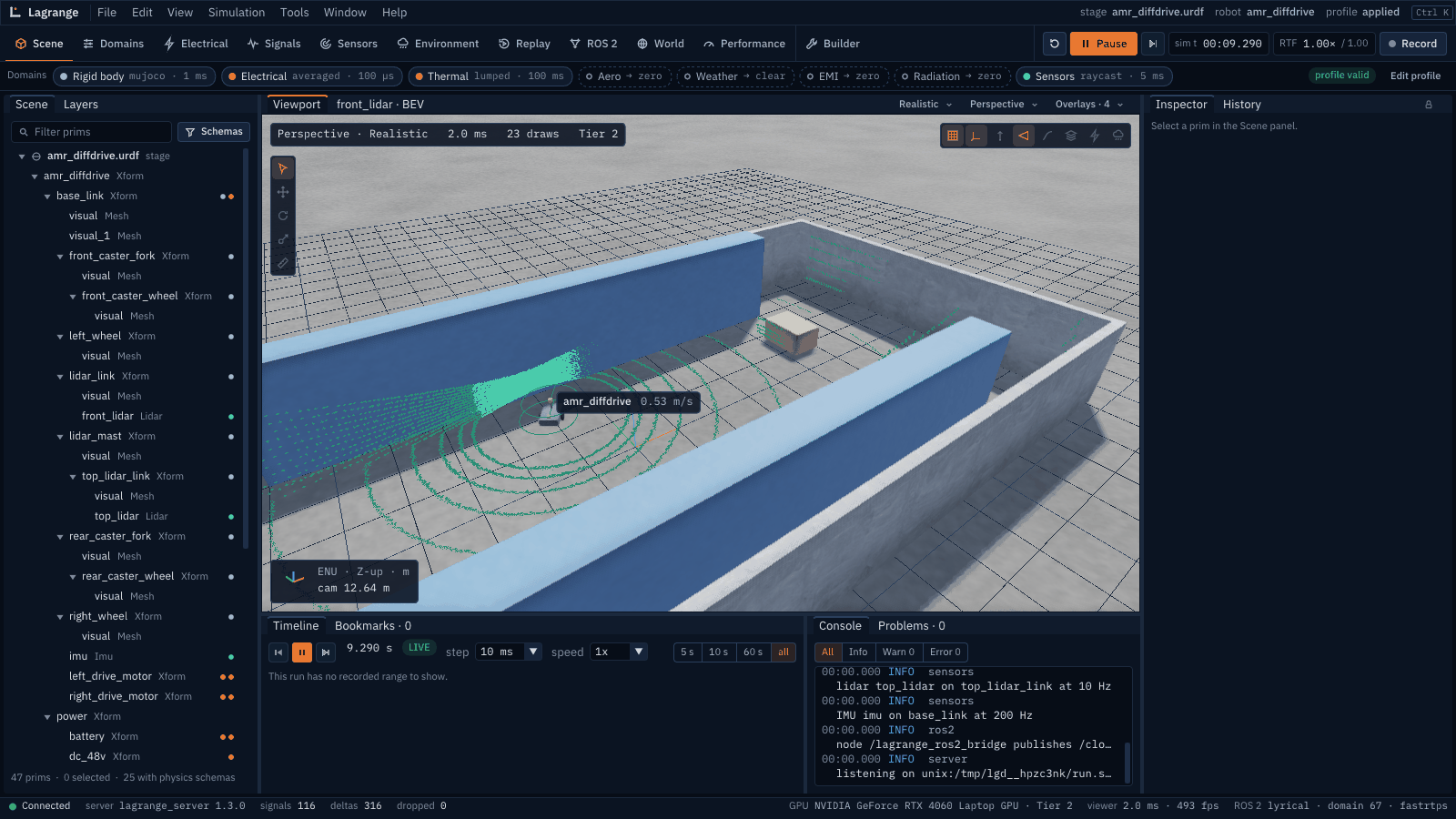
The robot drives a figure-eight (a demo that plays until a velocity command arrives: two 1.2 m loops that touch where it starts, followed closed-loop, so it keeps to the aisle). The Scene workspace shows it with the lidar returns, the prim tree on the left and the console:
Things to try:
Domains (top bar) shows the profile: Rigid body, Electrical, Thermal and Sensors on, the rest substituted. The wiring and the schedule show what runs when.
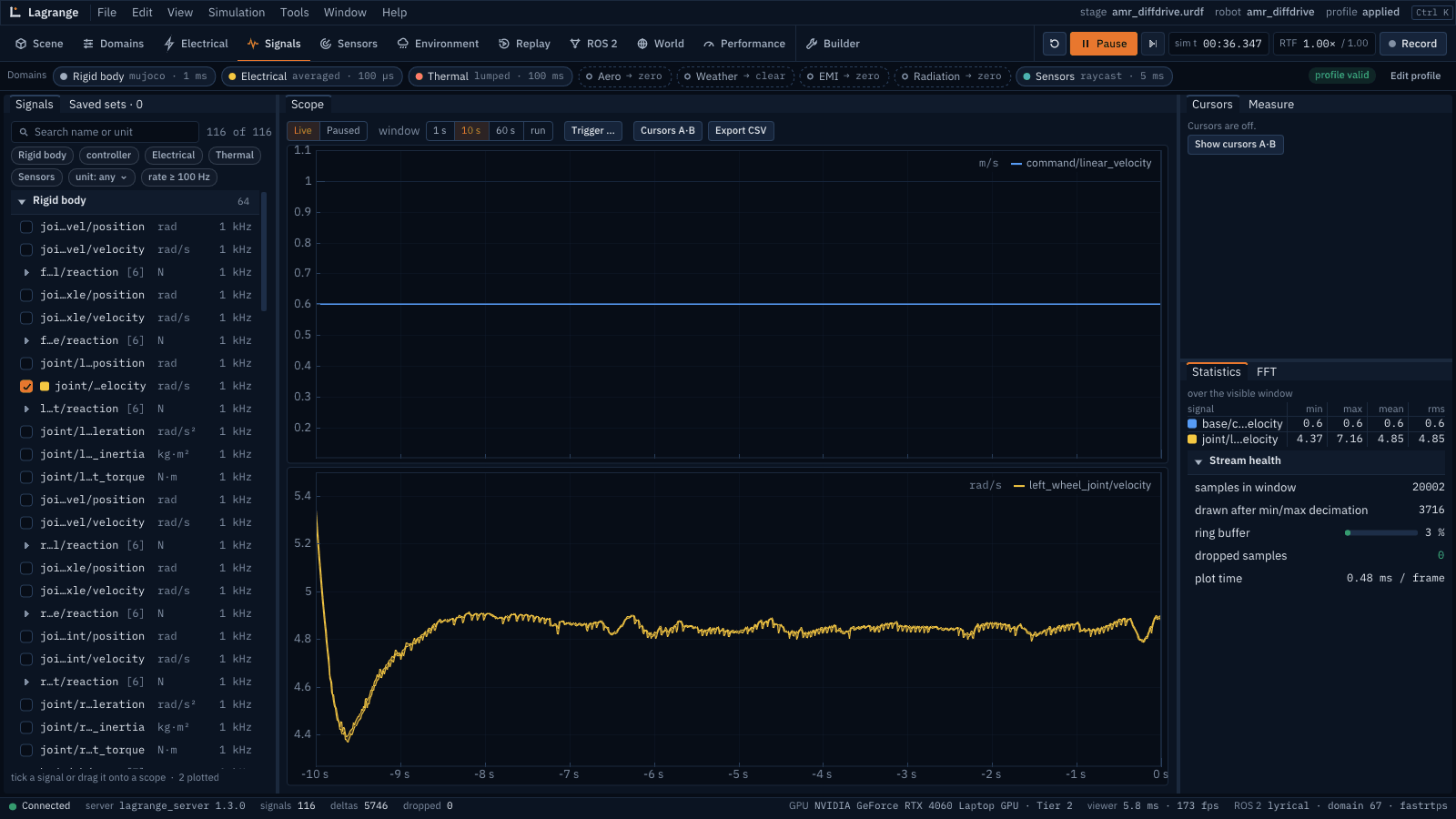
Signals: tick
base/command/linear_velocityandjoint/left_wheel_joint/velocityto plot them. The commanded speed ramps to 0.6 m/s. During the left loop (0.5 rad/s), the left wheel is the inner one: its rim moves at 0.6 − 0.5 × 0.23 = 0.485 m/s, so with a 0.1 m radius it turns at about 4.85 rad/s, which is what the scope shows.
Pause, Step and the real-time factor are on the top right.
Stop the simulator with Ctrl+C when you are done.
4. Drive it over ROS 2
The simulator publishes /clock, /tf, /odom, /joint_states, /scan, /points and
/imu, and takes /cmd_vel as geometry_msgs/msg/TwistStamped. Start it again, this time
recording:
lagrange run $profile --record run.mcap
In another terminal:
ros2 topic list
ros2 topic pub --rate 10 /cmd_vel geometry_msgs/msg/TwistStamped "{twist: {linear: {x: 0.4}}}"
The figure-eight stops and the robot drives straight ahead at 0.4 m/s. Check it in a third terminal:
$ ros2 topic echo --once --field twist.twist.linear.x /odom
0.39956309858014327
Stop the publisher: half a second without a command, the robot stops. Stop the simulator; the
recording is closed and run.mcap holds every signal of the run (about 1.5 MB/s for this
robot). Without --record, the viewer’s Record button (or Ctrl+R) does the same while it
runs: its dot turns red, and a second press stops it. The file goes on the simulator’s machine,
in ~/.local/state/lagrange/recordings/ (its tooltip names it); the console logs it when it
closes. Replay it with:
ros2 run lagrange_server lagrange_server --replay run.mcap
then connect the viewer (ros2 run lagrange_viewer lagrange_viewer, Connect). The scene and
every recorded signal come back sample for sample, and the Replay workspace’s timeline seeks
anywhere in the run. A replay runs no physics and publishes nothing to ROS. Recordings hold no
camera images or point buffers: a robot with cameras replays, but its cameras show no frame
(the console names the buffers left out).
5. Switch a domain off
Copy the profile and turn the sensors off:
sed 's/sensors:      { enabled: true }/sensors:      { enabled: false, substitute: ground_truth }/' \
    $profile > no_sensors.yaml
lagrange validate no_sensors.yaml --robot $(ros2 pkg prefix lagrange_assets)/share/lagrange_assets/robots/amr_diffdrive/amr_diffdrive.urdf
lagrange graph no_sensors.yaml --robot $(ros2 pkg prefix lagrange_assets)/share/lagrange_assets/robots/amr_diffdrive/amr_diffdrive.urdf
The copy is in another directory than the profile’s stage, so --robot names the robot. The
graph shows the sensors as dashed boxes marked substitute. They write the same signals as the
real sensors, exact and noise-free, so everything that reads them keeps working. In the viewer,
the same switch is in the Domains workspace (Apply and restart).
6. Your own module
Writing a module builds an odometer from the wheel speeds and runs it on this robot:
ros2 run lagrange_tutorial odometer_demo 10
ros2 run lagrange_tutorial odometer_demo --wrong-unit   # the run refuses to start
Where next
Concepts: domains, substitutes, units, the scheduler, tiers, determinism.
Profiles: every key, what v0.2 applies, the errors.
The design documents in
docs/design/.